DNS Intelligent Resolution

 Custom Authoritative DNS
 Cloud Computing Services

 Server Rental
 DDoS protection
 About DNS.COM
 Support
 Contact Us
 AFF
 API Docs

 CN
 EN

Reasons Why a Website Might Not Load in 2026 and Troubleshooting Methods
For the same domain name, some users can access the site while others cannot. This scenario has become increasingly common by 2026; website access is no longer as simple as a domain pointing to a single server—it involves end-to-end coordination across domain resolution, network transmission, edge nodes, server responses, and application rendering. If any link in this chain breaks, the user sees the same message: "This site cannot be reached."
This article outlines a comprehensive troubleshooting guide for inaccessible websites in 2026, proceeding from local to remote issues and from simple to complex scenarios.
Step 1: Rule out local environment issues
Many "site inaccessible" faults actually originate from the user's own device or network. Since troubleshooting these issues is the least costly, they should be addressed first.
Clear browser cache and DNS cache. Expired browser cache or cookies can cause page loading errors. Enter `ipconfig/flushdns` into your computer's command prompt to refresh the DNS cache, then try accessing the site again.
Test using a different network environment. Disconnect from your current Wi-Fi and connect via a mobile hotspot. If access works after switching networks, the issue lies with the original network's DNS or routing configuration. If the site remains inaccessible across all networks and devices, you need to investigate the domain and server side.
Check the local hosts file and router DNS configuration. The hosts file takes precedence over DNS resolution; if it contains an incorrect domain-to-IP mapping, resolution requests will not be sent to the DNS server. Log in to your router's management interface to check if the DNS configuration has been tampered with.
Step 2: Troubleshoot the domain resolution process
Domain resolution is the first step in accessing a site; a failure here directly results in the site being inaccessible.
Verify the resolution result. Use `nslookup [your domain]` to check if the returned IP address matches the server's actual IP. If the IPs do not match or the system reports "domain not found," the resolution record is likely misconfigured or has not yet taken effect. You can use `dig [your domain]` to view more detailed resolution information.
Check the domain status. Log in to your domain registrar's dashboard to confirm whether the domain has expired, completed real-name verification, or is currently in a "ServerHold" or "ClientHold" state. In June 2026, the Ministry of Industry and Information Technology (MIIT) fully implemented its revised *Administrative Measures for Internet Domain Names*. Domestic domain registration officially adopted a strict "verify identity first, then register, then activate" workflow. Domain name resolution is suspended for any domain that has not completed real-name verification.
Verify that the NS records point to the correct service provider. If you have added resolution records in the DNS management panel but the domain's NS records still point to the old provider, the configuration in the new panel will be completely invisible to the external network. Use the command `dig NS yourdomain.com` to check the currently active NS servers.
New compliance requirements for 2026: In July of that year, the MIIT launched a special audit of DNS service provider qualifications. It explicitly mandated that for all corporate websites, mini-programs, and e-commerce platforms with completed ICP filings, the primary domain resolution must utilize a domestic provider holding the MIIT B26-1 class qualification; overseas DNS services may only serve as backups. Domains relying solely on unlicensed overseas DNS services face immediate suspension of resolution services and rejection of ICP filing annual review applications. Data shows that in Q1 2026, the failure rate for accessing corporate websites due to non-compliant DNS configurations rose by 17% year-over-year.
Step 3: Check server response status
If DNS resolution is functioning correctly but the website fails to load, the issue likely lies at the server level.
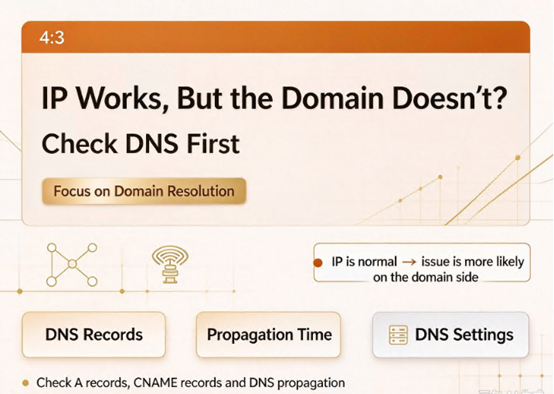
Perform a direct IP connection test. This is the fastest way to distinguish between DNS issues and server issues. Access `http://server_IP` directly via your browser; if the site loads, the server and web service are running normally, and the problem is 100% related to domain resolution or domain binding. If the site fails to load via the IP address, you must continue troubleshooting the server side.
Check the port listening status. Log in to the server and run `ss -tulnp | grep 80` or `netstat -tulnp | grep 80`. If there is no output, it indicates that Nginx or Apache has not started or the port is not listening. Run `systemctl status nginx` to check the service status, and use `systemctl start nginx` to start the service.
Check firewalls and security groups. The server system firewall and the cloud platform security group act as two independent layers of protection; if either layer fails to allow traffic on ports 80 or 443, external requests will be blocked. Run `firewall-cmd --list-all` to view firewall rules and confirm that the ports are open. Simultaneously, log in to the cloud platform console to check if the security group's inbound rules allow traffic on the web service ports.
Check if server resources are exhausted. High CPU utilization, memory exhaustion, or a full disk can cause the service to stop responding. Use `top` to monitor CPU and memory usage, and `uptime` to check system load. If the load consistently exceeds the number of CPU cores, the current configuration is likely insufficient to handle the workload.
Step 4: Troubleshoot application-layer issues
If the server and ports are functioning correctly but the website still fails to load, the issue may lie at the application layer.
HTTPS certificate issues. New regulations effective in 2026 have reduced the maximum validity period for SSL certificates to 200 days, making certificate expiration a common cause of failure. If a website enforces HTTPS but the certificate has expired, the domain name does not match, or the certificate chain is incomplete, the browser will reject the connection. Test this by running `curl -I https://your-domain`; a return message indicating an "SSL certificate problem" confirms a configuration error.
Web server domain binding check. Nginx uses the `server_name` directive to determine which domain requests to respond to. If your domain is not included in the configuration, Nginx will serve the default site or reject the request. Check the site configuration file to ensure `server_name` includes both the primary domain and the "www" subdomain; after making changes, run `nginx -t` to validate the syntax, followed by `systemctl reload nginx` to apply the new configuration.
CDN origin-pull configuration errors. If the domain uses a CDN but the origin address is incorrect, the origin-pull Host header is misconfigured, or the origin server restricts the CDN's origin-pull IP addresses, user requests will be routed to the wrong destination. Log in to the CDN console to verify the origin-pull configuration, ensuring parameters such as the protocol, origin address, and origin-pull Host header are correct.
New variable for 2026: Edge computing failures. In February 2026, Cloudflare experienced a global outage lasting 4 hours and 37 minutes. The root cause was a configuration change in the edge routing layer that bypassed canary checks, triggering a cascading failure that affected R2 storage and Workers execution. If your website relies on an edge computing platform, you need to verify the platform's own service status. Meanwhile, the combination of intelligent DNS and Anycast routing strategies has reduced average public network access latency from 120ms in 2020 to a projected 65ms in 2026—a reduction of nearly 50%—demonstrating that effective use of edge nodes can significantly improve the user experience.
Step 5: Check for DNS poisoning or hijacking
If all the preceding steps show normal results but users in certain regions still cannot access the site, you need to investigate potential DNS poisoning or hijacking.
Perform multi-location Ping tests. Use online tools to query domain resolution results from nodes in various regions. If most nodes return the correct IP but specific regions consistently return a different, incorrect IP, this indicates regional DNS poisoning.
Compare resolution results across different DNS servers. Query using `nslookup yourdomain 8.8.8.8` and `nslookup yourdomain 114.114.114.114`; significant discrepancies between the two results suggest tampering or cache poisoning along the path.
Check authoritative DNS records. Use the `dig +trace yourdomain` command to trace the full DNS resolution path and verify that the authoritative DNS returns the correct value. If the authoritative DNS returns the correct value but the user-side resolution is incorrect, there is interference somewhere in the resolution chain.
Summary of troubleshooting sequence
When a website fails to load, it is recommended to troubleshoot step-by-step in the following order:
Step 1: Determine if the issue is local—clear the cache, switch networks, and check the hosts file.
Step 2: Verify DNS resolution—use `nslookup` to confirm the IP address is correct, check the domain status and NS records, and ensure compliance with 2026 DNS regulations.
Step 3: Test direct IP connection—distinguish between DNS issues and server issues.
Step 4: Check server ports, firewalls, security groups, and resource status. Step 5: Troubleshoot HTTPS certificates, web server domain bindings, and CDN origin-pull configurations.
Step 6: Check for DNS pollution or regional hijacking.
The core logic of this troubleshooting process involves verifying layer by layer—moving from the user side to the server side and from the resolution layer to the application layer—rather than making speculative leaps. Proceeding to the next step only after successfully verifying the current one allows for the fastest identification of the issue.
DNS.COM’s intelligent domain resolution service supports real-time monitoring of resolution status and features capabilities for detecting and blocking DNS pollution. The platform has implemented IPv6 resolution and one-click DNSSEC deployment; resolution logs are stored on domestic servers by default for over 180 days, directly meeting security audit requirements under the Multi-Level Protection Scheme (MLPS). For enterprises aiming to maintain regulatory compliance under the new 2026 regulations, selecting a resolution platform that holds the necessary qualifications and offers intelligent diagnostic capabilities is, in itself, the most effective step toward minimizing "website inaccessible" issues.
 Latest Posts


 Online Customer service