DNS Intelligent Resolution

 Custom Authoritative DNS
 Cloud Computing Services

 Server Rental
 DDoS protection
 About DNS.COM
 Support
 Contact Us
 AFF
AFF
 API Docs

 CN
CN
 EN
EN

Can access via IP but not domain name? A comprehensive troubleshooting guide from DNS to server.
Accessing the site via the server's IP address works perfectly, yet using the domain name fails—this is one of the most common issues in website operations and maintenance, and also one frequently misdiagnosed. Many people’s first reaction is to assume the server has crashed or the domain has been blocked. In reality, the fact that the site loads via IP proves the server is running correctly; the issue lies in either the "domain-to-IP mapping" or the "server's configuration for handling the domain."
This article breaks down the causes and solutions step-by-step, following the troubleshooting path from DNS to the server.
Layer 1: DNS Resolution
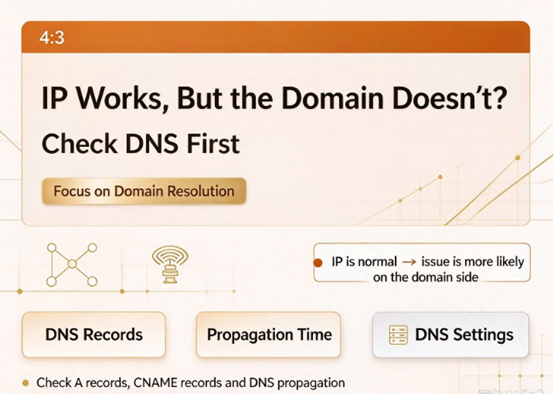
DNS resolution is the first step in accessing a site via a domain name. If the site loads via IP but not via the domain, the root cause is often that the domain has not been correctly resolved to the server's IP address.
Incorrect resolution record configuration. Log in to your DNS management dashboard and verify that the IP address in the A record matches the server's public IP. Common errors include entering the wrong IP in the A record, configuring only the "www" subdomain while attempting to access the root domain (naked domain), or incorrectly setting up a CNAME record when an A record was required.
Resolution has not fully propagated. After modifying resolution records, global DNS caches require time to refresh—a process that can take anywhere from a few minutes to 24 hours. You can run `nslookup yourdomain.com` to check the current resolution result; if the returned IP does not match the server's IP, the resolution has not yet taken effect or the configuration is incorrect.
Incorrect NS record pointing. This is a crucial point that is easily overlooked: if you have added resolution records in your DNS provider's dashboard but the domain's NS records still point to an old provider, all configurations in the new dashboard remain "invisible" to the external network. Use `dig NS yourdomain.com` to view the currently active NS servers and confirm they point to the DNS provider you are currently using.
Abnormal domain status. If a domain has not completed real-name verification or is in a "ServerHold" or "ClientHold" status, the registry will suspend resolution, preventing normal access. Log in to your domain registrar's dashboard and perform a WHOIS lookup to verify the domain's status.
Layer 2: Server Domain Binding
If DNS resolution is working and the site is accessible via IP, but the domain still fails to load, the problem usually lies on the server side—specifically, the web server has not correctly bound your domain name. Taking the widely used Nginx as an example, it uses the `server_name` directive to determine which domain name requests to respond to. If your domain is not included in the configuration, Nginx will return the default site or reject the request outright. Check the site configuration file to ensure that `server_name` includes both the primary domain and the "www" subdomain:
nginx

server{

listen 80;

server_name yourdomain.com www.yourdomain.com;

root/var/www/html;

index index.html;

}
After modifying the configuration, run `nginx -t` to test the syntax, then `systemctl reload nginx` to reload it. Note that the configuration will not take effect if the site configuration file is not correctly linked to the `sites-enabled` directory.
Additionally, if the server enforces HTTPS redirection but the SSL certificate has expired, the domain does not match, or the certificate chain is incomplete, the browser will reject the connection. Test this using `curl -I https://yourdomain.com`; if the output indicates an "SSL certificate problem," there is an issue with the certificate configuration.
Level 3: Local Environment Factors
Sometimes everything is normal on the server side, and the problem lies with the visitor's local environment.
Expired local DNS cache. After a server IP change, local devices and routers may still hold cached DNS resolution results. Clear the cache by running `ipconfig /flushdns` on Windows or `sudo killall -HUP mDNSResponder` on Mac.
Erroneous entries in the hosts file. The hosts file takes precedence over DNS resolution; if an incorrect domain-to-IP mapping is present, the resolution request will never be sent to the DNS server. Check `C:\Windows\System32\drivers\etc\hosts` (Windows) or `/etc/hosts` (Linux/Mac) and remove any anomalous entries related to the target domain.
Test by switching DNS servers. If the problem persists after clearing the cache, temporarily change your system's DNS settings to a public DNS provider (such as 223.5.5.5 or 8.8.8.8) and test again. If resolution works after the switch, it indicates a synchronization delay or malfunction with your original ISP's DNS.
Level 4: CDN and Proxy Configuration
If the domain is connected to a CDN, the issue may lie in the origin-pull process. After a CDN node receives a user request, it must fetch the content from your origin server. If the origin address is incorrect, the origin Host header is misconfigured, or the origin server restricts the CDN's origin-pull IP addresses, users will encounter "Connection Timeout" or "502 Error" messages.
Log in to the CDN console and verify the "Origin Server Information" and "Origin Host" configurations. Temporarily disable the CDN and access the origin server directly via the domain name; if the origin server works correctly while the CDN does not, the issue lies within the CDN configuration.
Summary of Troubleshooting Steps
When faced with a situation where the IP address is accessible but the domain name is not, it is recommended to troubleshoot step-by-step in the following order:
Step 1: Confirm that DNS resolution returns the correct IP address. Use `nslookup` or `dig` to query the domain and compare the returned IP with the server's public IP. If they do not match, check the DNS records and NS (Name Server) settings.
Step 2: Verify the domain status. Use a WHOIS lookup to check if the domain is in "ServerHold" or "ClientHold" status.
Step 3: Confirm that the web server is bound to the domain name. Check if the Nginx `server_name` configuration includes the target domain and ensure the configuration has been reloaded to take effect.
Step 4: Rule out local environment issues. Clear the local DNS cache, check the hosts file, and test using a public DNS resolver.
Step 5: Check CDN or proxy configurations. If the domain is connected to a CDN, verify that the origin-pull configuration is correct.
The core logic of this troubleshooting process is to verify layer by layer—moving from resolution to response and from remote to local—rather than making speculative leaps. Proceeding to the next step only after successfully verifying the current one allows for the fastest identification of the problem.
DNS.COM’s intelligent DNS resolution service supports real-time monitoring of resolution status and includes capabilities for detecting and blocking DNS pollution, enabling rapid identification and resolution of anomalies. For business scenarios requiring high-availability DNS, hosting your domain on a platform that offers intelligent resolution and security protection is an effective way to minimize issues where the domain fails to connect.
 Latest Posts



 Online Customer service